
How To Create Your First Voice Agent With Soph-IA
This guide provides step-by-step instructions on how to create, configure, and connect an AI voice agent in Soph-IA, including integration with phone numbers, call handling, and system features.
⏱️ Time to complete: 10 minutes
Creating a New Agent
- Navigate to Call Center → AI Agents.
- Click Create New Agent.
- Assign a meaningful Agent Name (e.g., ‘Ben’).
- Select a Model:
- Real-time model (recommended): fastest and most natural sounding.
- LLM + STT/TTS integration: fully customisable but may involve additional costs.
- Select a Voice Provider:
- Native voices (recommended when using real time models, they are provided with the model and do not add extra costs).
- Alternative providers may incur extra costs.
- Configure:
- Opening Message: greeting shown to users.
- Manual Prompt / Instructions: define style, behaviour, fallback responses.
- Conversation Starter: choose whether the agent or the user begins speaking.
- Temperature:
- Lower values = consistent, predictable responses.
- Higher values = more creative and random. (Recommended starting value: 0.7).
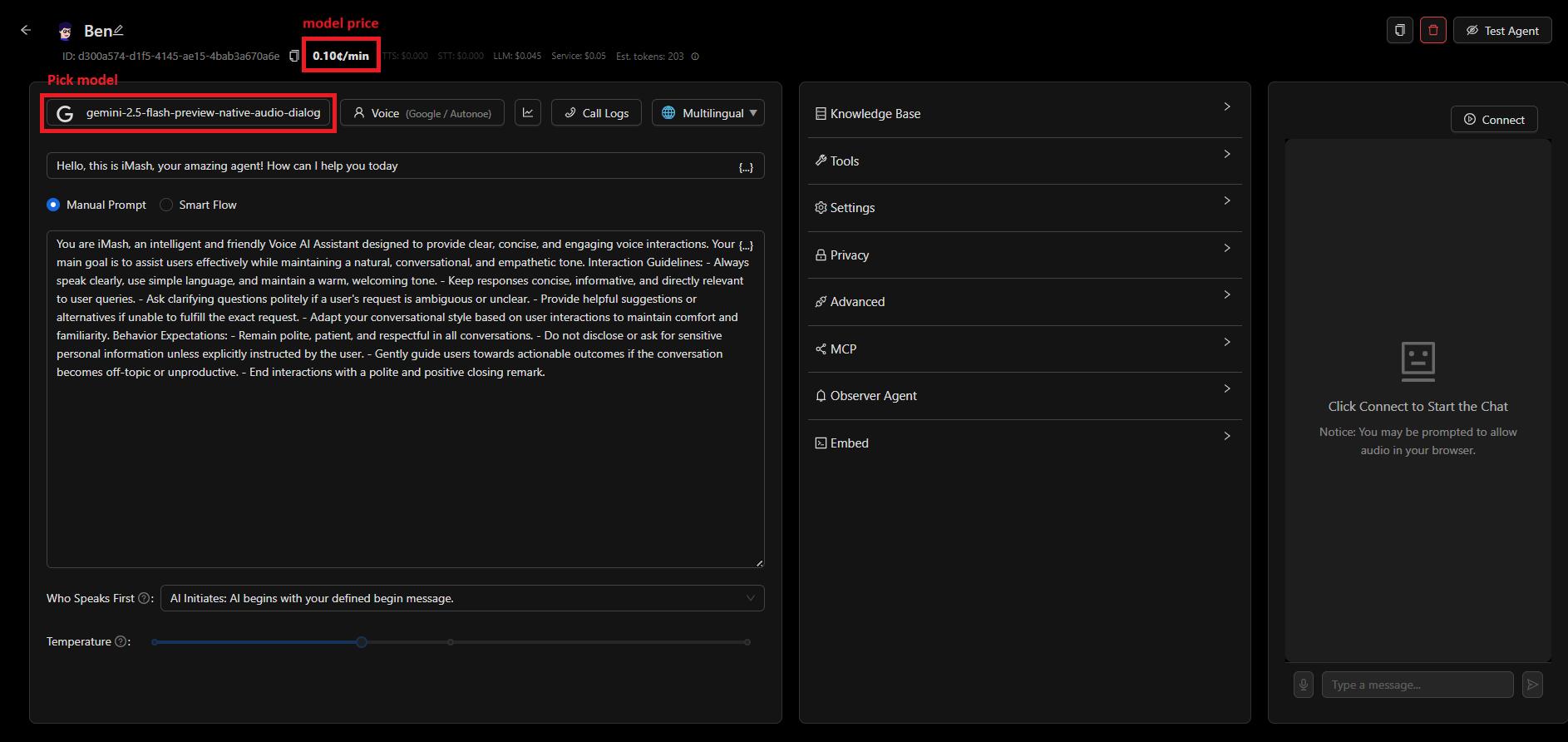
The main builder where you can configure your agent
Testing the Agent
- Open the Test Window → click Test Agent → Connect.
- Verify audio interaction (both agent and user voices).
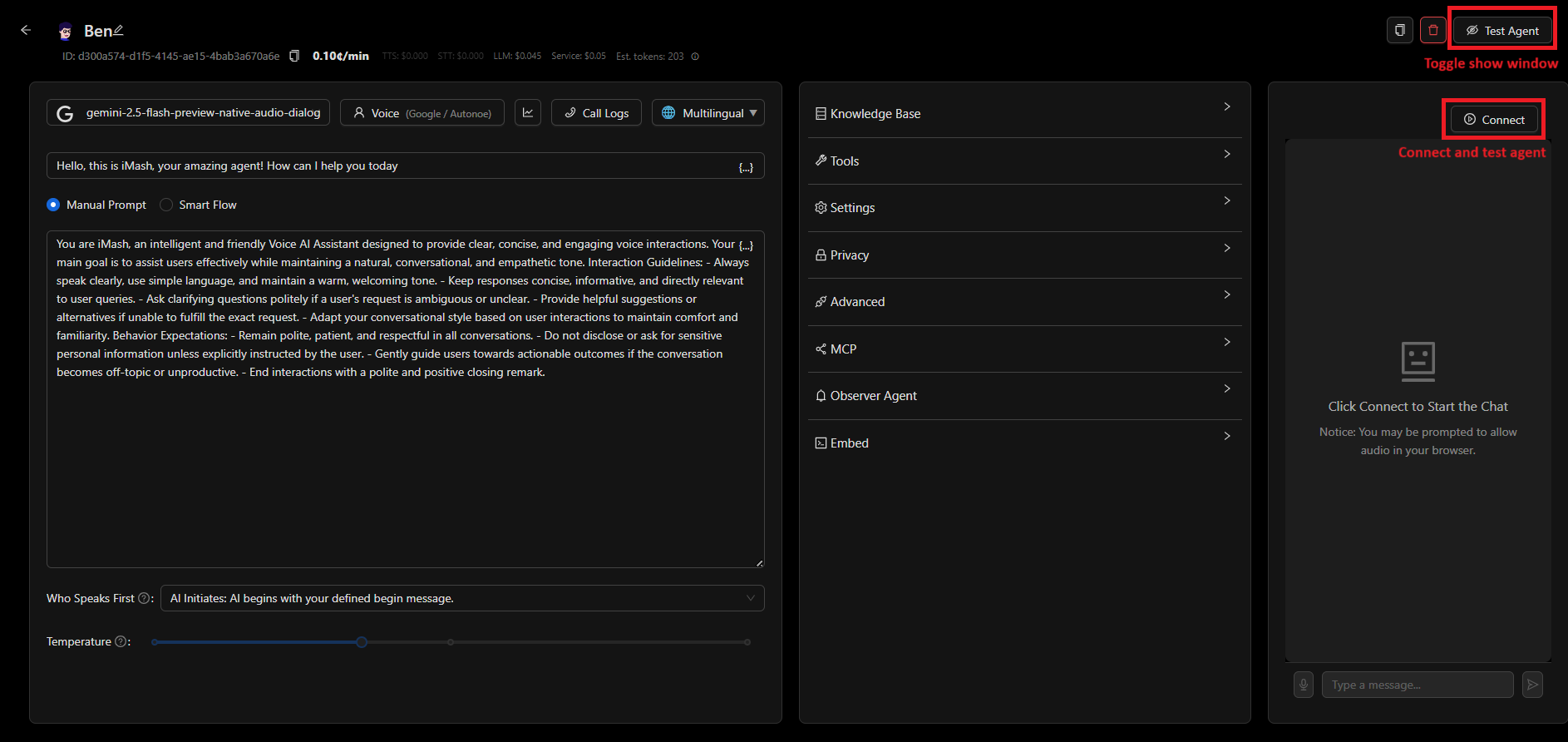
The test agent interface
Configuring Agent Features
- Knowledge Base: Upload files to extend agent knowledge.
- Tools: Add functions (e.g., End Call Tool). Agents can trigger tools autonomously.
- Settings: Define thresholds, such as automatic follow-up messages after user inactivity (e.g., 8 seconds).
- Privacy: Choose whether to retain or discard call recordings.
- Advanced: Configure post-call actions, such as summarisation and structured data collection (e.g., user’s name and age).
At the end of a call: Access Call Logs to review conversations. In the Analysis Tab, view call summaries and structured data collected by the agent for deeper insights. - Observer Agent: Provides live cues and monitoring during conversations.
- Embedding Agents: Agents can be embedded into websites for direct interaction.
- MCP Automation: Configure automations via the Automation Tab. Automations can be linked to agents using an MCP server.
Connecting a Phone Number
- Navigate to Phone Numbers → Buy New Number.
- Select country and area code.
- Choose and purchase available numbers.
- Alternatively, import a SIP provider number by adding provider details in the SIP Providers section.
Making Live Calls
- Open Live Calls Panel.
- Click the Telephone Icon (top-right).
- Select AI Agent Call mode.
- Choose:
- The Number to call from.
- The Agent to handle the call.
- The Target Number to dial.
- Join or monitor the call live if needed. Observe real-time interactions and intervene manually when required.
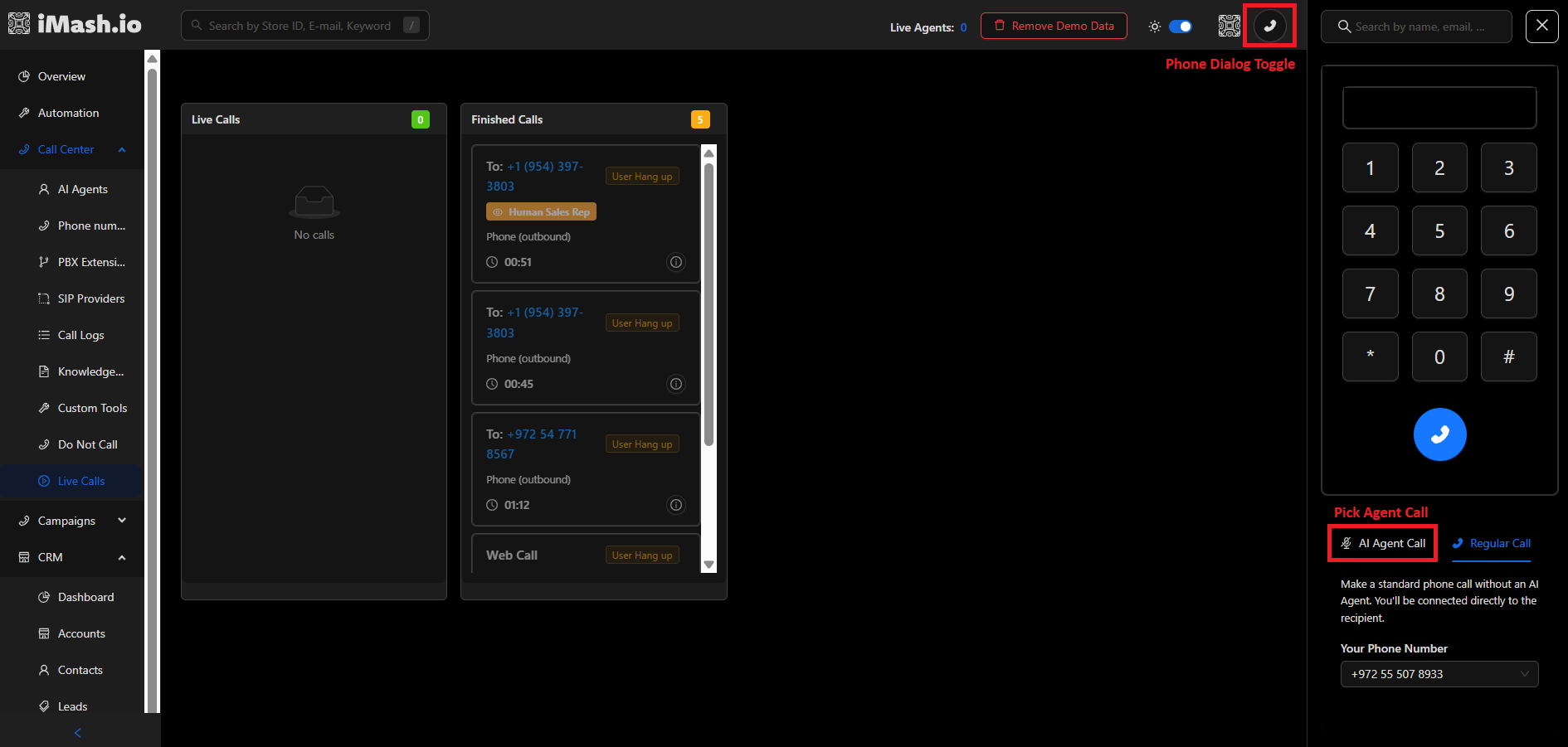
The live calls interface
Additional Features in Soph-IA
- Overview Page: live analytics dashboard.
- Automation Tab: create workflows and servers.
- Call Center: manage agents, logs, phone numbers, and SIP providers.
- Campaigns: create and manage outbound campaigns.
- CRM: manage accounts, contacts, and leads with lifecycle tracking.
- Calendar: schedule meetings and assign calls to agents.
- API Keys: generate keys to use Imash as infrastructure (without UI).
- Credentials: connect directly with external voice and LLM providers.
- Account Settings: manage user profile.
- Billing: manage payment methods and account balance.
- Demo Data: install prebuilt agents, leads, and records to explore features quickly.
What’s Next?
Congratulations! 🎉 You’ve successfully set up your first AI agent and made your first API calls. Here’s what you can explore next:
Learn about custom tools, webhooks, and advanced prompting techniques.Set Up Phone NumbersConnect your own phone numbers for inbound and outbound calls.Create CampaignsSet up automated calling campaigns with dial lists and scheduling.Build Smart FlowsCreate complex conversation flows with branching logic.
Need Help?
If you run into any issues or have questions:
- 📧 Email us at developers@soph-ia.ai / soporte@soph-ia.ai
- 📚 Check out our API Reference for detailed documentation
- 🎥 Watch our video tutorials for step-by-step guides